Access 2003
Upgrading to Access 2007 or Access 2010
Table of Contents
After eight solid years of using Access 2003, you may be asking whether you should upgrade to the latest and greatest Access version (or at least to Access 2007). Access 2007 and 2010 have a wealth of new features to improve your existing Access database, or help you design a new one with greater ease. The leap from Access 2003 to 2007/2010 is largely painless, but you should certainly assess the changes between them since some features have been removed, and taking advantage of new features will require you to make changes to your MS Access databases.
Should You Upgrade?
The first question of course is whether you should even upgrade at all? Assuming you have the choice (IT isn't forcing you to upgrade to Office 2007 or 2010) and financial means (about $398 for Office 2010 Professional, or $117 for Access 2010 alone), the primary reason should be new features that you can benefit from. In no particular order, here are the key additions and improvements made between Access 2003 and later versions:- Attachment Fields
- The new Access 2007 file format (*.accdb) supports a new data type "Attachment." An Attachment field allows you to store files (Word documents, images, any file really) with a record in your table. There are no limits to the number of attachments for a single record, but you'lll want to make sure you mind the 2GB Access database limation (the 2GB limit is for the entire database file, not per attachment). Read more about attachment fields on the Microsoft website.
- Office 2007 Design Interface
- The Office Fluent Ribbon received a great deal of flak in the
first years after it was released in 2007. By and large, most
2007 users have climbed the learning curve and see that the new
design tools are in fact great conveniences. There are some
key changes in 2007 and 2010 that make leaps over the Access 2003
paradigm:
- Office Ribbon
- The Office fluent ribbon provdies one major capability
you will appreciate: task-specific menu options.
You are working in a form, and the Ribbon will change to
show Access form design specific tasks and options.
They are presented in large, easily understandable buttons
and groupings by and large. Yes, it will require a bit
of re-learning to know where things are located, but rest
assured they are all there.

Goodbye Access Control Toolbox, hello Ribbon! - Access Report Design View
- The Access 2007 Report Design View makes many common
tasks much, much easier. For example, grouping and
sorting was once tucked away in a menu button and dialog box
that wasn't always easy to understand or reorder afterwards.
The new grouping and sorting pane appears at the bottom, can
be kept visible at all times, and is very understandable in
plain language.
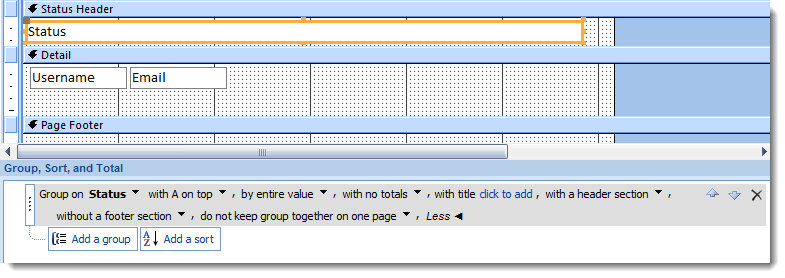
Designing Access reports is much more straightforward. - Access Table Design View
- def
- Table Templates (Access 2010)
- def
- Access Form Design View and Wizards
- def
- Integration to Share Point Server
- defintion
- Minor Refinements and Bug Fixes
- defintion
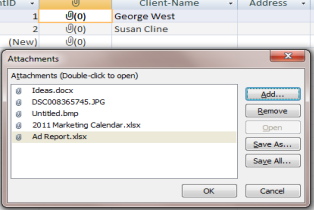
Access 2007 and 2010 Attachment Field Dialog
-ways to save (runtime version)
Changing Access File Formats
-needed for features X, Y, and Z-Must have all users on the same version to use the new format
New Access Features
-Design tools -Macro -Security -VB -form/tableRemoved Features
-data access pages -workgroup security in x format
-custom menus