You are here:
MS Access Products >
MS Access Tips > Microsoft Access
What is Microsoft Access Used For?
A Brief MS Access Tutorial
Very simply, Microsoft Access is an
information management tool
that helps you store information for reference, reporting,
and analysis. Microsoft Access helps you analyze
large amounts of information,
and manage related data more
efficiently than Microsoft Excel or other spreadsheet
applications. This article shows you when to use
Access, and how it can help make you more effective.
Table of Contents
The Problem
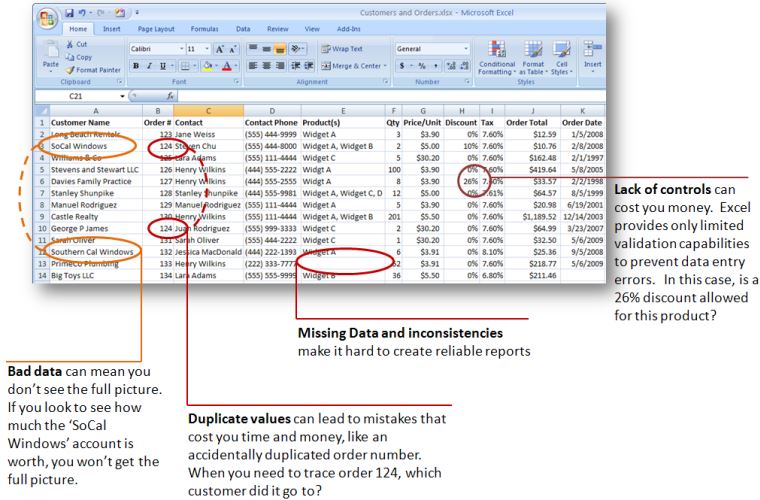
A spreadsheet program is a terrific tool for maintaining and calculating small sets of information. Microsoft Excel is easy to understand, create column names, enter your data, create formulas, and you're on your way. You can sort, filter, and format the data quickly and easily. But spreadsheets are not ideal for handling hundreds of records where you need to have "one version of the truth" for something like a customer, a contact, or main "thing" you need to track. It is very easy to introduce errors into a spreadsheet, which then makes analysis, summing, and reporting very challenging. The image below provides a quick example of several key challenges spreadsheets face.
The Solution: Store Related Information Together, Eliminate Duplication
The value any database can provide is to
store related information in one place, and then let you
connect various different things together (sometimes called "entities"
in database speak). You store one version of the truth
for any given thing, like a client, a DVD, or an order.
Some of the major benefits to using a database are:
- Fewer errors and inconsistencies. Maintaining one version of the truth for the things you need to track minimizes the potential for duplication, errors, and inconsistent values. In the Excel example above, customer names, contact phone numbers, and product names are misspelled, transposed, and abbreviated in different forms. Imagine trying to create a report or graph in Excel that shows an accurate picture of your sales or other key performance indicators.
- Higher productivity. You and others working in your database need only change a single record and all other related things in your database will automatically "see" the change. In our Excel example, you would need to change every occurrence of a customer's name. Find and replace wouldn't necessarily catch that a customer's name is spelled six different ways. In a database, there is only one customer record to change. Every other record (orders, contacts, etc) that relates to that customer record will never need to change because they are joined to the customer.
- Security and Control. Databases provide a central location to store, secure, and control your data. Microsoft Access includes the ability to encrypt and password protect database files. And with users relying on a database rather than separate Excel spreadsheets, you can have greater control over access to the information.
- Better Decisions and Insight. Perhaps most importantly, a single source of truth in a standardized format means you can gain better insight and make better decisions by reporting and analyzing your data in a database. Users are familiar with Excel charting, and databases like Microsoft Access can provide similar capabilities, while going beyond Excel with more powerful historical trending, aggregation, and query filtering.
Helpful Access Tools
Designer
Easy-to-use wizard helps you create Access databases in minutes without being an expert
UI Builder
Essential features for any Access application
Dashboard Builder
Create stunning Access dashboards without being an SQL guru
Visit our Microsoft Access catalogue for more products
Easy-to-use wizard helps you create Access databases in minutes without being an expert
UI Builder
Essential features for any Access application
Dashboard Builder
Create stunning Access dashboards without being an SQL guru
Visit our Microsoft Access catalogue for more products
|
|
|
How does a Microsoft Access database work?
Microsoft Access works in the same manner any database does, by storing related information together, and letting you create connections (commonly called relationships) between different things. The relationships between two different things in MSAccess can be very simple (such as a contact at a customer and the customer itself) or complex. In the example below, the blue boxes represent the major things we're tracking in our MS Access database tables, and the reports at right show how you can join the related information for analysis and reporting.
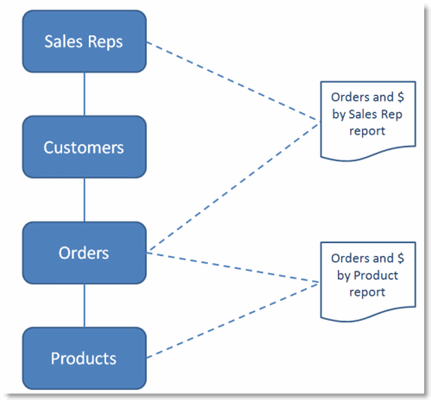
Data is stored in Microsoft Access tables (think of them as mini-spreadsheets that store only one type of thing). A table can have many fields (think of them as columns in your spreadsheet). Each field in a table can be set up to allow or prevent users from entering certain information (for example, you could say one field only accepts dates, another can only allow a user to enter a numeric value, while another lets them enter anything they want).
Once you have your MS Access tables, fields, and relationships set up, you can create data entry forms that use those tables to store your information and later create reports with the data. Microsoft Access forms are incredibly easy (and fun) to design with a wysiwyg form design tool. And you can use MS Access forms to simplify data entry for users by grouping related fields together, and hiding fields they don't need to enter. The Microsoft Access Command Button Wizard even helps you to create simple buttons for your forms without understanding how to create macros and Visual Basic.
Continue to Page 2 - When Should I Use MS Access? >>
Register for our free eBook - 'Using Microsoft
Access For Greater Efficiency' where you can get
a comprehensive view of how Microsoft Access can help you
be more productive, when to choose Access as a solution,
best practices, and where to get help online.